
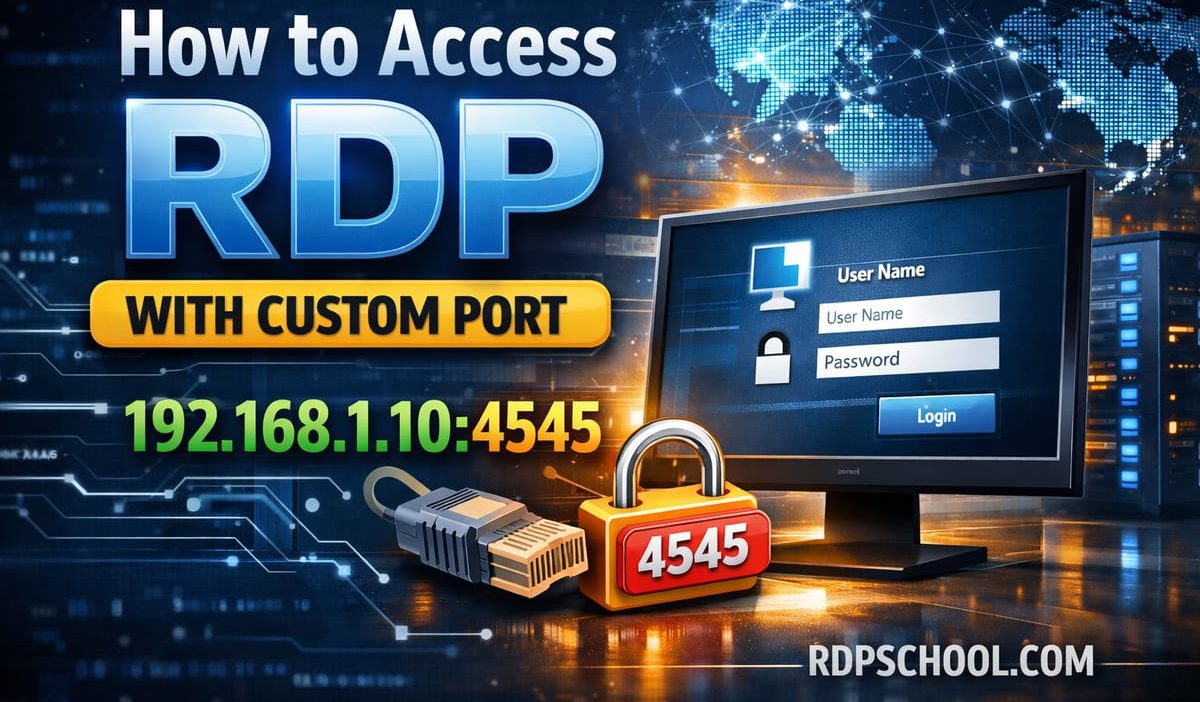
Remote Desktop Protocol (RDP) is one of the most powerful tools for accessing Windows systems remotely. However, using the default port 3389 can expose your system to security risks. A smarter and safer approach is to configure and access RDP using a custom port.
In this complete guide, you’ll learn exactly how to access RDP with a custom port, including setup, firewall configuration, and connection methods.
🔐 Why Use a Custom RDP Port?
Changing your RDP port helps improve security and reduce unauthorized access attempts. Here’s why it’s recommended:
- ✔ Reduces brute-force attacks targeting default port 3389
- ✔ Adds an extra layer of security
- ✔ Helps avoid conflicts with multiple RDP services
🛠 Step 1: Change the Default RDP Port
To use a custom port, you must first modify it in the Windows Registry.
- Press Win + R, type regedit, and hit Enter
- Navigate to:
HKEY_LOCAL_MACHINE\System\CurrentControlSet\Control\Terminal Server\WinStations\RDP-Tcp
- Find PortNumber
- Double-click and change it from 3389 to your desired port (e.g., 3390)
- Select Decimal and click OK
- Restart your computer
🔥 Step 2: Allow Custom Port in Windows Firewall
You must allow the new port through your firewall, otherwise RDP won’t work.
- Open Windows Defender Firewall
- Click Advanced Settings
- Select Inbound Rules → New Rule
- Choose Port
- Select TCP and enter your custom port
- Allow the connection
- Apply to all profiles and give it a name
🌐 Step 3: Configure Router Port Forwarding
If you’re accessing your RDP from outside your local network, you need to forward the custom port.
- Login to your router admin panel
- Go to Port Forwarding
- Forward your custom port (e.g., 3390) to your PC’s local IP
💻 Step 4: Connect to RDP Using Custom Port
Now comes the most important part — connecting with the custom port.
Use this format:
IP_ADDRESS:PORT
Example:
192.168.1.100:3390
Steps:
- Press Win + R
- Type mstsc
- Enter your IP with port
- Click Connect
⬇️ Recommended RDP Client Downloads
Windows Remote Desktop
Pre-installed on Windows systems
Microsoft Remote Desktop (Android)
Microsoft Remote Desktop (iOS)
📊 Pros & Cons of Using Custom RDP Port
| Pros | Cons |
|---|---|
| Improves security | Requires manual configuration |
| Reduces attack attempts | May forget port number |
| Flexible for multiple servers | Firewall misconfiguration risk |
💡 Pro Tip
If you’re frequently working with remote servers, using a reliable and high-performance RDP provider can save you a lot of setup time. Platforms like rdpschool.com offer optimized RDP and dedicated servers that often come pre-configured, making it easier to manage custom ports and security settings efficiently.
✅ Final Thoughts
Accessing RDP with a custom port is a simple yet powerful way to improve your system’s security. By changing the default port, configuring firewall rules, and connecting correctly, you can significantly reduce vulnerabilities while maintaining full remote access functionality.
Follow the steps carefully, and you’ll have a secure, custom-port RDP setup in no time.